
UNSOLVED
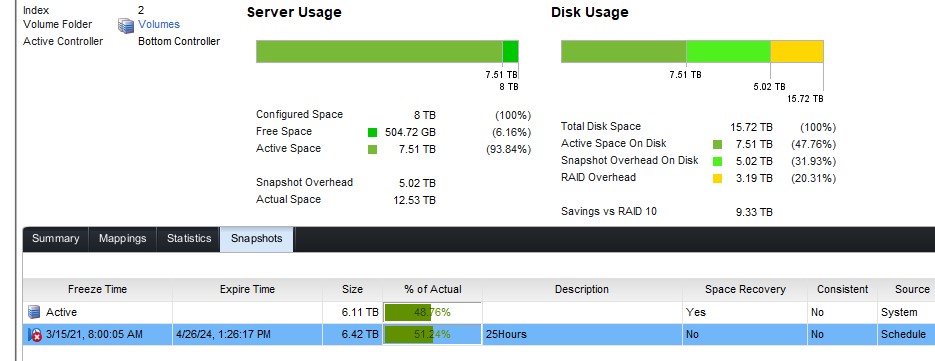
How can I recover space in snapshot and delete snapshot fDELL SCv3020 STORAGE
How can I recover space in snapshot and delete snapshot in DELL SCv3020 STORAGE
Can it be done through the visual interface in dellstoraeclient or do you need to use a command?
0
0
Posted April 29th, 2024 06:01
Thanks
This not only erases the snapshot disk but also the main disk connected to it.
I only want to delete the snapshot
(edited)
0
0
Posted April 29th, 2024 06:52
Hi,
I can understand while deleting snapshots can be a helpful way to free up space, it's crucial to understand the process to avoid unintended consequences. It is strongly discouraged to remove snapshots on your own, as it may lead to the corruption of the entire storage data. Furthermore, we are unable to endorse any form of direct data deletion. I recommend consulting with your local support team for guidance on safely deleting snapshots specific to your situation. Might be they need to remote connect and check it.
DELL-Erman O
Social Media and Communities Professional
Dell Technologies | Enterprise Support Services
#IWork4Dell
Did I answer your query? Please click on ‘Mark as Accepted Answer’. ‘Thumbs up’ the posts you like!0
0
Posted February 13th, 2026 14:09
Hi mate,
Did u resolve the issue?
0
0
Posted February 14th, 2026 06:22
0
0
Posted February 16th, 2026 10:16
Hi,
manually expire (delete) unneeded snapshots page 120-121 Dell Storage Manager 2020 R1 Administrator's Guidehowever we strongly discourages deleting snapshots manually unless verified safe. If snapshot behavior seems abnormal,contact Dell Support before deleting anything.DELL-Erman O
Social Media and Communities Professional
Dell Technologies | Enterprise Support Services
#IWork4Dell
Did I answer your query? Please click on ‘Mark as Accepted Answer’. ‘Thumbs up’ the posts you like!0
0
Posted June 9th, 2026 16:18
Is safe to follow page 120-121
Allow the Most Recent Snapshot for a Volume to be Expired
If you do not need to keep at least one snapshot for a given volume at all times, you can allow the most recent volume snapshot
to be expired by a Snapshot Profile.Steps
1. If the Dell Storage Manager Client is connected to a Data Collector, select a Storage Center from the Storage view.2. In the Storage tab navigation pane, select the volume.
3. In the right pane, click Edit Settings.
The Edit Volume dialog box opens.
4. Click Edit Advanced Volume Settings.The Edit Advanced Volume Settings dialog box opens.
5. Select the Allow Snapshots to coalesce into active Snapshot checkbox.6. Click OK to close the Edit Advanced Volume Settings dialog box.
I'm in the same situation last expired snapshot keep stay there ( we have still 30% free space on the tier )

0
0
Posted June 11th, 2026 23:24
@DELL-Erman O Hi to make go away an old expired snapshot I have only to restar scv controllers that old the lun/snapshot ? like : 1. Storage Manager → Volumes → Select Volume → Snapshots tab 2. Right-click snapshot → Expire 3. Controllers → Shut Down/Restart Controller → Restart - controller reboot and snapshot expired go away 4. Space free immidiatly ?
0
0
Posted July 7th, 2026 16:26
Hi Marco,
Thank you for reaching out regarding your Dell Storage Center snapshot management question.
Regarding your first question, the procedure outlined on pages 120-121 of the Dell Storage Manager documentation for allowing the most recent snapshot to coalesce into the active snapshot is a supported feature. However, please understand that enabling this setting means that there will be no snapshot protection for that volume once all snapshots have expired. If something were to happen to the active data and no snapshots remain, you would have no point-in-time recovery available from the Storage Center snapshot perspective. So while it is safe to enable from a technical standpoint, you should ensure that you have an alternate form of data protection such as replication or external backups before enabling this option.
Regarding your second question about restarting the controllers to force expired snapshots to be reclaimed, I would strongly advise against restarting controllers solely for the purpose of clearing expired snapshots. Controller restarts cause temporary IO disruption to all volumes hosted on that controller, and this is not the intended or recommended method for reclaiming space from expired snapshots. The Storage Center system is designed to reclaim space from expired snapshots automatically through its background coalescing process, which can take time depending on the amount of data involved and current system load. The expired snapshot appearing in the interface does not necessarily mean space is not being reclaimed, as the process happens gradually.
If you are finding that expired snapshots are persisting for an unusually long time and space is not being reclaimed as expected, this may indicate a condition that should be investigated by Dell ProSupport rather than addressed with a controller restart. I would recommend opening a support case with your Service Tag so that an engineer can review the storage system logs and determine if there is an underlying reason the coalescing process is not completing as expected.
Let us know if there is anything else we can assist you with.
Thanks,
Josh
Did I answer your query? Please click on ‘Mark as Accepted Answer’. ‘Thumbs up’ the posts you like!
#Iwork4Dell

DELL-Chris H
7 Practitioner
•
9682 Posts
•
48046 Points
0
0
Posted April 26th, 2024 19:38
Onronr2,
You can find details on changing the available snapshot space on page 202 here, and you can also find the steps to delete a snapshot on page 203.
Let me know if this helps.
DELL-Chris H
Social Media and Communities Professional
Dell Technologies | Enterprise Support Services
#IWork4Dell
Did I answer your query? Please click on ‘Mark as Accepted Answer’. ‘Thumbs up’ the posts you like!