UNSOLVED
Closed
A
andrewduong77
1 Rookie
•
2 Posts
1
46491
December 3rd, 2018 21:00
you'll a new app to open this alpsdelltouchpadsettings

My Dell Latitude 5580 RAM went bad triggering multiple BSOD even while I was trying to Reset my PC. After I replaced my RAM, it solved the some of the problems. The new problem is since I suffered a BSOD during a PC reset, it seems to have damaged or corrupted the Windows 10 installation files, so I unable to reset my PC, three failed attempts. So, I used the recovery media USB that came with the PC.
Apparently, when I used the recovery media to re-install Windows 10, it doesn't come with all the drivers as when I got my laptop from the Factory. It didn't even come with at least a 2017 or 2018 version of Windows 10. It rather came with Windows 10 version 1511 (from 2015) and about one-fourth of all the drivers needed. I had to manually download Dell SupportAssist and a number of the drivers I believed are missing.
Then I also had to manually update Windows 10 to version 1809 which was a lot of hassle because the update failed so many times when I tried to run the update automatically. I also lost all the Dell built-in wallpapers that came from the factory. The recovery media doesn't include them either.
(Hint: If you're customizing your Dell PC order, forget about opting for the recovery media USB drive. It's useless. It comes with a well outdated version of Windows 10 and a bunch of missing drivers. You're better off making your own recovery media drive using the Dell OS Recovery Tool before something happens.)
I downloaded the ALPS Dell Touchpad driver from the Dell's Drivers & Downloads Support for my PC under my Service Tag. I installed it successfully, but I every time I tried to go the Dell Touchpad properties it throws me this message and asked me if I would like to open it with the Microsoft Store.
"you'll a new app to open this alpsdelltouchpadsettings"
Please help me, I can't change my Dell Touchpad properties now. I tried uninstalling it and reinstalling it after installing the Windows 10 version 1809 update successfully, but I could never open the Dell Touchpad properties successfully like I used to when I got this laptop from the Dell manufacturer!
This conversation is no longer open for comments or replies and is no longer visible to community members.
45315
3
Posted December 18th, 2018 10:00
How do you install this app if you don't have access to the Microsoft Store? We disable access to it from all our corporate machines and actually uninstall the Store application.
44171
2
Posted February 28th, 2019 12:00
Same here - MS Store blocked at the enterprise level.
I had the same problem with a Latitude 7480, Win 10 version 1803. I downloaded the Dell Touchpad Driver and Dell Touchpad Settings from support.dell.com:
Dell-Touchpad-Driver_228PM_WIN_10.3201.101.211_A06.EXE
Dell-Touchpad-Settings_885J4_WIN64_10.1.10.0_A01.EXE
The driver .EXE was about 140 MB while the "Settings" .EXE was 10.6 MB. Launching the Settings installer gets you an "Install" or "Extract" button. I picked Extract, and it spit out 3 documents totaling 12 kB (yes, 12 kilobytes):
mup.xml
OpenLink.bat
package.xml
Openlink.bat is what takes you to the MS Store.
But when I extracted the 140 MB Driver .EXE, it spit out the files shown in this picture (and this picture and an Excel spreadsheet with default settings were both in there too).
I don't know what those are, but I opened I2Cx64 and right clicked on ApHidFiltr.inf and picked "Install". That seemed to install both the driver and a working Touchpad control panel... this is a rough outline of what happened b/c I'm not 100% sure all the previous software had been removed, etc. and that this single .inf file was sufficient...
Just keep in mind that you may be able to manually extract the files to get what you need. You can use 7-zip also to extract the contents of the Dell .EXE driver installers.
43964
5
Posted March 7th, 2019 07:00
SnackTre is definitely on the right track and the information provided helped me to figure out how to get the Dell Touchpad Control Panel working:
1. Download the Dell Touchpad Driver (the 140MB file SnackTre speaks of). I downloaded it from here.
2. Extract the Touchpad EXE to a location of your choosing
3. Go into the extracted Dell Touchpad driver folder and enter the I2CDx64 folder (this is the folder I used - I have not tested on any model other than a 7280)
4. Inside of the I2CDx64 folder, the DellTpad.exe executable is the Touchpad settings executable. If you double click on it in the folder, the settings app should start. The dependencies that DellTpad.exe needs to run are:
DellTpad.exe
Vxdif.dll
Apoint.dll
5. If you want to save only the Dell Touchpad app to your computer and get rid of the rest of the files, just save the two DLLs and the DellTpad.exe file in their own separate folder and run DellTpad.exe whenever you need to adjust the touchpad settings.I have already isolated the DellTpad.exe, Vxdif.dll, and Apoint.dll files in their own folder on my desktop and I will use it to roll out the touchpad settings app for our users via SCCM since we remove Microsoft Store functionality from our machines via OSD reference image.
43955
0
Posted March 7th, 2019 09:00
Awesome, great work around!
I haven't run into this recently - it appears that the newer dells like the 7490 don't use the Dell software anyway and instead tells you to use the Windows 10 trackpad control panel, which seems to have the same functionality.
But for older Dell laptops, Windows 10 wants you to install this Dell app which is the source of my frustration with the Microsoft Store. Dell really should just put the stupid thing as a regular download so you can deploy it in an image.
13734
1
Posted July 11th, 2019 16:00
I'm on a Latitude 5580 which is an older model and doesn't support the "Windows 10 trackpad control panel" and I used the Touchpad Driver that is meant for Windows 7 from https://www.dell.com/support/home/us/en/04/drivers/driversdetails?driverid=94HPR&oscode=W764&product...
It installed just fine on Windows 10 and the settings work perfectly!!37406
0
Posted August 15th, 2019 11:00
Hi. Quick question. How did you get those other files? When i extracted the EXE, i only get those 3 files. I even used 7zip and it extracted different files.
37403
0
Posted August 15th, 2019 12:00
Never mind. I figured it out. I had to use the Dell Toucpad Driver and not the Dell Touchpad Assistant.
File Name: Dell-Touchpad-Driver_35M77_WIN_10.3201.101.212_A05_01.EXE
I was able to install it from there.
11215
0
Posted September 3rd, 2019 15:00
Thanks for all this. I followed the instructions and everything worked all right.
Problem is, there is no way to reverse the scrolling direction that I can see. Is that true? I like to move my fingers up when scrolling up and down when scrolling down. Does anyone know how to make this change?
29077
0
Posted September 23rd, 2019 11:00
Thanks for the info here - very helpful!
Unfortunately, the older Win7 driver did not work for me (I am running Win10 LTSC 2019, which is the long-term build for v1809, on a Latitude 5591). The older driver would not install, even when I extracted the package and tried to install manually, and also I tried in compatibility mode with no luck.
However, the info from mlhommedieu put me on the right track to not only find the Dell Touchpad app but also get it to open from the icons in the Control Panel and in the system tray. It turns out that DellTPad.exe is actually already installed to C:\Windows\System32\DellTPad (along w/ all needed files) if we install the Touchpad driver package (the latest supported one for Win10 x64 - the ~140MB package) from Dell. So it actually does install the Touchpad software for you but it just doesn't link up the taskbar icon, nor the "launchalpsdelltouchpad" protocol, with the actual executable (presumably because it wants you to use the one from the MS Store).
But, since DellTPad.exe is already installed on the system, we can easily just create a shortcut on the desktop if that is good enough and launch it from there. But if we want to go one step further, we can also get it launching from the taskbar (by right-clicking the Touchpad icon in the system tray and choose "Touchpad Properties") by adding a registry key - the reg file would look something like this:
Windows Registry Editor Version 5.00

[HKEY_CLASSES_ROOT\launchalpsdelltouchpad]
@="launchalpsdelltouchpad Protocol"
"URL Protocol"=""

[HKEY_CLASSES_ROOT\launchalpsdelltouchpad\DefaultIcon]
@="C:\\Windows\\System32\\DellTPad\\DellTPad.exe,0"

[HKEY_CLASSES_ROOT\launchalpsdelltouchpad\shell]

[HKEY_CLASSES_ROOT\launchalpsdelltouchpad\shell\open]

[HKEY_CLASSES_ROOT\launchalpsdelltouchpad\shell\open\command]
@="C:\\Windows\\System32\\DellTPad\\DellTPad.exe"
Just save the above in a .reg file and import it after installing the Win10 touchpad driver package and everything should be working - both the Control Panel icon in the Hardware section and the system tray icon's "Touchpad Properties" menu option (this fix applies for all users). Basically this just takes advantage of the fact that the installer apparently registers a protocol "launchalpsdelltouchpad", but it just doesn't link it to any valid app (because it wants us to use the app from the store). So then we just make this protocol launch DellTPad.exe by default through adding the reg key above, and voila - the Control Panel and system tray icons work again, launching the desktop app instead of searching for a Store app.
More info on configuring protocol launch behavior can be found here.

andrewduong77
1 Rookie
•
2 Posts
45266
0
Posted December 5th, 2018 12:00
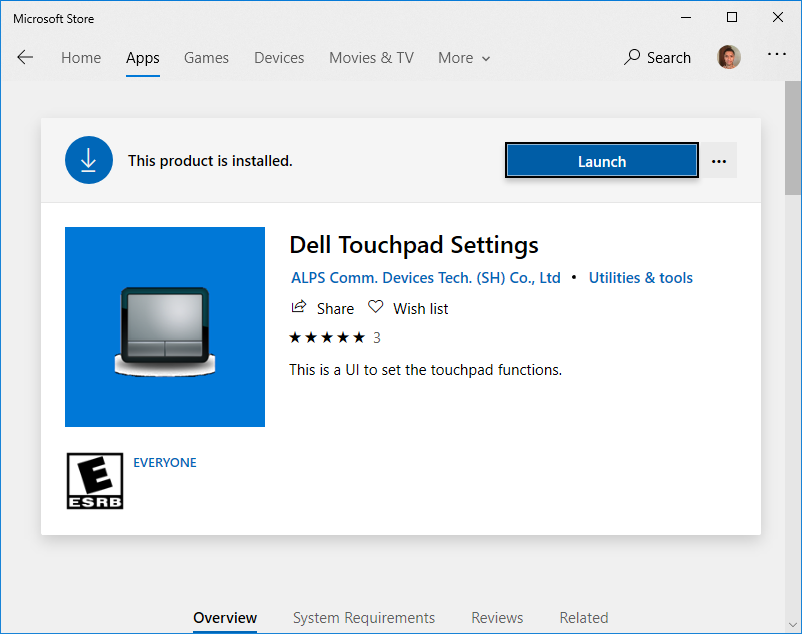
Issue Solved. I just found out I have to download the required Dell Touchpad Settings app as well directly from the Microsoft Store.