
UNSOLVED
C
chiggins01
1 Rookie
•
7 Posts
•
11 Points
0
72
October 30th, 2026 15:27
R660 logical processors
so my server contains a Xeon Silver 4410Y 12C/24T (12Core/24Threads)
Reading that 'logical processors' in the BIOS was effectively the old HyperThreading option.,
I was kind of assuming that if 'Logical Processors' was disabled in the BIOS, then we would see 12 and when enabled we would see 24 logical processors in the OS. But whether enabled or disabled , we only ever see 12.
Any assistance welcome, perhaps im just confused
2
0
Posted November 2nd, 2026 09:27
@DELL-Bridjet V All those settings seem to be correct . Actually seeing this on 3 servers
PS C:\Users\administrator> Get-CimInstance Win32_Processor | Select-Object DeviceID,NumberOfCores,ThreadCount,NumberOfLogicalProcessors
DeviceID NumberOfCores ThreadCount NumberOfLogicalProcessors
-------- ------------- ----------- -------------------------
CPU0 12 24 12
CPU1 12 24 124
0
Posted November 2nd, 2026 09:32
Have recently run the latest Dell SSU on these servers so all should be up to date. shame this issue was not noticed before running SUU.
0
0
Posted November 2nd, 2026 10:21
Hi @chiggins01,
Thank you for providing the PowerShell output—this actually reveals crucial details:
Notice that ThreadCount is reporting 24 for each CPU. This confirms that Hyper-Threading / Logical Processors is active and functioning at the hardware/BIOS level on both sockets (
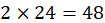 total hardware execution threads).
The discrepancy where NumberOfLogicalProcessors reports 12 while ThreadCount reports 24 is typically tied to how Windows or the Hyper-V hypervisor manages logical processors.
Here are the most common causes and how to verify them:
1. Check Total System Logical Processors
The Win32_Processor class has a known reporting quirk in certain Windows Server builds where it reflects physical core topology in that specific property.
To see what the Windows kernel is actually using, please run:
powershell
(Get-CimInstance Win32_ComputerSystem).NumberOfLogicalProcessors
Or check Task Manager > Performance > CPU:
- Sockets: 2
- Cores: 24
- Logical processors: 48 (if operating normally)
If Task Manager shows 48 logical processors, the server is utilizing all threads properly, and the previous command was simply a WMI property quirk.
2. Hyper-V / Virtualization-Based Security (VBS) Scheduling
If the Hyper-V role, Credential Guard, or Device Guard (VBS) is enabled on these servers, the Windows hypervisor boots beneath the host OS:
- The Hyper-V Core Scheduler (default in modern Windows Server) may restrict the parent/root management OS to 1 logical processor per core (hence 12 per socket = 24 total) to mitigate side-channel vulnerabilities (like Microarchitectural Data Sampling / MDS), while allowing child VMs to utilize the full thread pool.
- To check the Hyper-V scheduler configuration, run in an elevated command prompt:
cmd
bcdedit /enum
Check the value for hypervisorschedulertype. If set to Core, this explains why the root partition reports 12 logical processors per socket.
3. Check for BCD / Boot Processor Limits
Ensure Windows has not been clamped to a static thread count during boot:
cmd
bcdedit /enum {current}
- Look for an entry named numproc. If numproc is present, Windows is strictly capped at that number of processors.
- To remove the restriction:
cmd
bcdedit /deletevalue numproc
(Requires a server restart to take effect)
Summary / Next Steps:
Since ThreadCount is already reading 24 per socket, your BIOS settings and the SUU updates are functioning correctly.
Could you check what Task Manager > Performance > CPU (or the Win32_ComputerSystem query above) reports for the total count of Logical Processors? If it shows 24 total across both sockets instead of 48, please let us know if Hyper-V or VBS is enabled on these machines.
Regards,
DELL-Bridjet V
Social Media and Communities Professional
Dell Technologies | Enterprise Support Services
#IWork4Dell
Was your query answered? Please click Thumbs Up on the post that helped to Mark it as Accepted Answer!
5
0
Posted November 3rd, 2026 09:51
We have now found that this is the case on many of our servers, so have had to raise a call with Dell.
Seems very odd that it affects so many.
Task manager/get-ciminstance basically everywhere reports just the 24 logical processors.
4
0
Posted November 3rd, 2026 10:52
Hi @chiggins01,
Noted.
Regards,
DELL-Bridjet V
Social Media and Communities Professional
Dell Technologies | Enterprise Support Services
#IWork4Dell
Was your query answered? Please click Thumbs Up on the post that helped to Mark it as Accepted Answer!
5
0
Posted November 3rd, 2026 12:58
You're correct. The Logical Processor setting in Dell BIOS is essentially Intel Hyper-Threading.
With your Xeon Silver 4410Y (12 cores / 24 threads), you should see 12 logical processors when disabled and 24 when enabled.
If you're seeing only 12 in both cases, I'd check the following:
-
Make sure the BIOS setting is saved and perform a full reboot.
-
Check Windows Task Manager → Performance → CPU and verify the reported cores and logical processors.
-
Check whether Windows has a boot configuration limiting the available processors (msconfig → Boot → Advanced options → Number of processors should normally be unchecked).
-
Check for any CPU restrictions in BIOS or operating-system configuration.
I'd also verify the result using CPU-Z or HWiNFO to rule out a Windows reporting issue.
The 4410Y definitely supports 24 threads, so seeing only 12 with Hyper-Threading enabled isn't expected.
-

DELL-Bridjet V
Moderator
•
119 Posts
•
341 Points
0
0
Posted November 2nd, 2026 04:50
Hi @chiggins01,
Your understanding of the setting is completely correct. The Intel Xeon Silver 4410Y has 12 physical cores and 24 threads.
If the operating system continues to report only 12 logical processors regardless of this setting, here are the most common reasons and how to resolve them on a PowerEdge R660:
1. The BIOS Setting Has Not Actually Applied (Pending Job)
On 16th-generation PowerEdge servers (like the R660), changes made via the iDRAC web interface or the Lifecycle Controller do not take effect immediately—they are staged as a scheduled job.
2. "Number of Cores per Processor" is Capped
In the BIOS under System BIOS Settings > Processor Settings:
3. Operating System-Level Restrictions
If Running Windows / Windows Server:
If Running Linux:
bash
cat /proc/cmdline
Look for parameters like nosmt, smt=off, or mitigations=auto,nosmt.
bash
lscpu
Look at Thread(s) per core (should be 2 when enabled) and Core(s) per socket (should be 12).
If Running VMware ESXi:
4. Firmware / Microcode
Ensure your PowerEdge R660 is running the latest BIOS and iDRAC9 firmware releases. Early BIOS revisions on 16G platforms with 4th Gen Intel Xeon Scalable (Sapphire Rapids) had microcode updates addressing CPU topology reporting.
If you are running inside a virtual machine rather than directly on the bare-metal host, verify the CPU allocation settings in your hypervisor.
Regards,
DELL-Bridjet V
Social Media and Communities Professional
Dell Technologies | Enterprise Support Services
#IWork4Dell
Was your query answered? Please click Thumbs Up on the post that helped to Mark it as Accepted Answer!