
UNSOLVED
G
greatdragao
1 Rookie
•
1 Message
•
2 Points
2
1071
July 16th, 2025 02:29
SupportAssist installer not running
When it asks to for permission to run the installer, I click yes and then nothing else happens. Anyone know the fix?
0
0
Posted July 18th, 2025 14:22
If the SupportAssist installer doesn’t run after clicking "Yes," try running as admin, disabling antivirus, or using Dell’s SupportAssist removal tool first.
Hi RasmiKandhil:
What SupportAssist v4.x removal tool are you referring to? I know that remnants of older SupportAssist installations can sometimes be removed with Microsoft's Program Install and Uninstall Troubleshooter (see my 05-Jan-2025 post in WjSturgis'Support Assist will not run about how to perform a clean reinstall of SupportAssist) but I don't know of any removal tool offered by Dell that will remove orphaned files and registry entries left behind after a "normal" uninstall of SupportAssist for Home PCs from Control Panel | Programs | Programs and Features or Settings | Apps.
Your suggestion to the OP greatdragao to try running the SupportAssistInstaller.exe installer while their antivirus is temporarily disabled might work, but if greatdragao requires further assistance it would still be helpful to know their Dell computer model, Windows OS, current SupportAssist version (if installed), etc. as requested <above>.
-----------
Dell Inspiron 15 5584 * 64-bit Win 10 Pro v22H2 build 19045.6093 * Firefox v140.0.4 * Microsoft Defender v4.18.25050.5-1.1.25050.6 * Malwarebytes Premium v5.3.4.202-136.0.5312 * Macrium Reflect Free v8.0.7783 * My Dell v2.2.6.0 * Fusion Service 2.2.14.00
0
Posted July 21st, 2025 09:37
same issue However when i install it there is a single frame wher some thing does pop up but it goes by so fast i cant catch what it is.
0
0
Posted July 21st, 2025 10:54
Hi kalatujj:
What version of SupportAssist, if any, is shown at Control Panel | Programs | Programs and Features, and has your Dell service warranty expired yet?
If my 18-Jul-2025 suggestion <above> to run SupportAssistInstaller.exe with Administrator rights doesn't fix your problem please let us know some basic information about your system like your Dell computer model, Windows operating system [open a Run dialog box (Windows key + R) and enter winver to find the version and OS build number], antivirus, and BIOS version. To find your current BIOS version open a Run dialog box, enter msinfo32 to open your System Information, and look for the field named "BIOS Version / Date" in the summary.
The system requirements for SupportAssist v4.6.x and higher posted <here> in the current release notes also state that the Microsoft .NET Desktop Runtime version 8.0.x. *** is a pre-requisite. If that .NET Desktop Runtime is missing from your system try installing it manually (available for download at https://dotnet.microsoft.com/en-us/download/dotnet/8.0) and then restart your computer and see if the SupportAssistInstaller.exe installer runs to completion.

*** NOTE: If you have the correct MS .NET Desktop Runtime v8.0.x installed it will have the word "Desktop" in the program name but will be missing the word ".NET" as shown above.
-----------
Dell Inspiron 15 5584 * 64-bit Win 10 Pro v22H2 build 19045.6093 * Firefox v140.0.4 * Microsoft Defender v4.18.25050.5-1.1.25050.6 * Malwarebytes Premium v5.3.4.202-136.0.5312 * Macrium Reflect Free v8.0.7783 * My Dell v2.2.6.0 * Fusion Service 2.2.14.00
0
Posted July 30th, 2025 10:43
Solution for SupportAssist Installer Not Running:
If SupportAssist isn’t launching after you click “Yes” on the permission prompt, try the following steps:
Run as Administrator Manually:
Right-click the SupportAssist installer file.
Select "Run as administrator" (even if you already clicked Yes before).
Temporarily Disable Antivirus/Firewall:
Some antivirus software or firewalls might block the installer. Try disabling them temporarily, then run the installer again.
Clear Temp Files:
Press
Win + R, typetemp→ Delete all files.Then type
%temp%→ Delete all files.Try the installer again afterward.
Check Windows Installer Service:
Press
Win + R, typeservices.msc, and hit Enter.Find Windows Installer and make sure it’s Running.
If it’s not, right-click and select Start.
Download Latest Version:
Go to Dell’s official site and download the latest SupportAssist version here.
Update Windows:
Make sure your Windows is fully updated. Some updates fix issues with installers.
Run System File Checker:
Open Command Prompt as administrator.
Type:
sfc /scannowand press Enter.Let it complete, then reboot and try again.
(edited)
0
0
Posted September 19th, 2025 20:29
@lmacri I'm also having the issue of the install screen popping up and going away so fast, I can't see it. Previously, I used Add/Remove programs to uninstall SA because it would hang up. Now it doesn't show in Add/Remove. I've searched the Community for help and can provide the following, hopefully, helpful information:
- I do have Microsoft Windows Desktop Runtime version 8.0.19 (x64).
- The only Dell service I have is 'Dell Digital Delivery Service' which I started.
- Microsoft Program Install and Uninstall Troubleshooter can't see SA.
- The free version of Revo Uninstaller can't see SA.
- I ran MdSched,
chkdsk c: /f
sfc /scannow
- I turned off my AVG Internet Security.
After all that with multiple reboots, the behavior of the install is the same.
The PC is no longer under support.
PC Info:

0
0
Posted September 19th, 2025 23:18
Hi hhc2014:
Have you noticed any other odd behaviour on your computer? For example, are your automatic Windows Updates running daily, and is your Windows Reliability Monitor logging any application or Windows errors?
What is the OS build number of your Win 11 v24H2 OS? To check, open a Run dialog box (Windows key + R) and enter winver. You can also find your OS build number at Settings | System | About | Windows Specificatons. If Windows Update is working correctly and delivered your September 2025 Patch Tuesday updates released on 09-Sep-2025 you should have received the KB5065426 monthly cumulative Quality update, which would have updated your Win 11 v24H2 OS Build to 26100.6584.
I am asking since you said you have Microsoft Windows Desktop Runtime version 8.0.19 (x64). The September 2025 Patch Tuesday updates should have also delivered the KB5066233 update for Microsoft Windows Desktop Runtime version 8.0.20 (x64) released on 09-Sep-2025.

I also noticed your Dell Inspiron 3910 System BIOS is a few versions behind. The "BIOS Version/Date" field in your System Information image shows you currently have BIOS v1.31.0, while your Inspiron 3910 support page at https://www.dell.com/support/product-details/en-us/product/inspiron-3910-desktop/drivers shows the latest available version is Dell Inspiron 3910 System BIOS v1.34.1 (rel. 17-Sep-2025). However, I don't think that would prevent SupportAssistInstaller.exe from running to completion, so don't worry about your BIOS version for now.
As a first troubleshooting step go <here> to download a fresh copy of the latest SupportAssistInstaller.exe. Save the .exe file to your desktop, close your browser and any other open programs, right-click the .exe file, and chose "Run as Administrator". When you post back let us know if this allows the installer to run to completion.
-----------
Dell Inspiron 15 5584 * 64-bit Win 10 Pro v22H2 build 19045.6332 * Firefox v143.0.0 * Microsoft Defender v4.18.25080.5-1.1.25080.5 * Malwarebytes Premium v5.3.8.212-140.0.5364 * Macrium Reflect Free v8.0.7783 * My Dell v2.2.6.0 * Fusion Service 2.2.14.00
0
Posted September 20th, 2025 16:57
@lmacri I haven't notice any unusual behavior. It did lock up a couple of days ago (9/18) and I had to hard boot but that was well after I started trying to install SupportAssist. From the Reliability log, I did find that mc-webview-cnt.exe 'Stopped working' a few times. The details showed that McAfee Security Scan was the 'faulting application.' I use AVG, so I uninstalled McAfee Security Scan Plus.

I confirmed that I have Win 11 v24H2 OS Build to 26100.6584.
I confirmed that Windows update is running regularly. I found a Dell BIOS update under optional and installed it, but I'm still only up to 1.33. I did not see an attempt to run KB5066233.
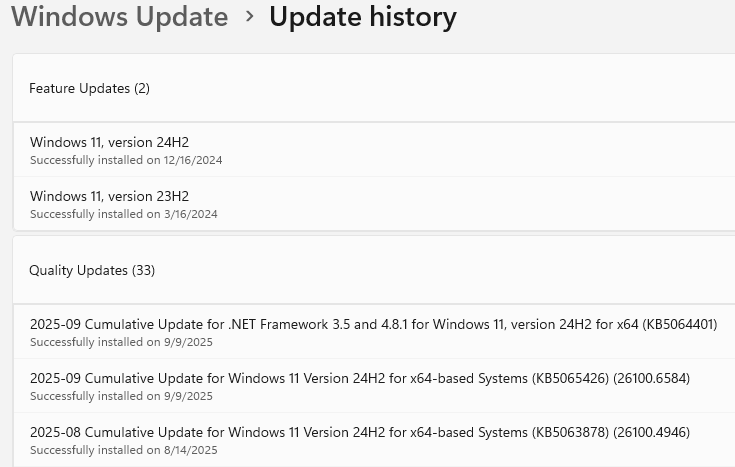
I downloaded the install file from the link you gave, rebooted, and ran as Administrator - same behavior - a brief flash (after answer Yes to update this PC) and then nothing.
0
0
Posted September 20th, 2025 23:06
I downloaded the install file from the link you gave, rebooted, and ran as Administrator - same behavior - a brief flash (after answer Yes to update this PC) and then nothing....I did not see an attempt to run KB5066233
Hi hhc2014:
Check at Control Panel | Programs | Programs and Features to see if there's any evidence that SupportAssist actually installed when you ran SupportAssistInstaller.exe with Administrator rights. Asban commented yesterday about the odd behaviour of this installer in their 19-Sep-2025 post in l2lafitte's Support Assist installed but not in Start menu that might be relevant to your own problem.
If your latest attempt to install SupportAssist failed you might find some useful information in the hidden C:\ProgramData folder at:
- C:\ProgramData\SupportAssist\Client\Agent\logs\ApplicationLogs\SupportAssistAgent.log
- C:\ProgramData\Dell\UpdatePackage\log (for individual .txt logs)
I'm not sure why your September 2025 Patch Tuesday updates on 09-Sep-2025 did not include the KB5066233 update for Microsoft Windows Desktop Runtime version 8.0.20 (x64) but we can circle back to that later.
The details showed that McAfee Security Scan was the 'faulting application.' I use AVG, so I uninstalled McAfee Security Scan Plus
A few random thoughts to consider.
If you previously used a McAfee antivirus product make sure you run the McAfee Consumer Product Removal (MCPR) tool, followed by a system restart, to remove any orphaned files and registry entries that might have been left behind by the uninstall of this software Any remaining traces of McAfee on your system could interfere with your AVG Internet Security.
Are you certain all your AVG real-time protection, including the AVG Enhanced Firewall, was disabled when your ran SupportAssistInstaller.exe with Administrator rights? See the AVG support articles Temporarily Disabling AVG AntiVirus Protection and AVG Enhanced Firewall - Getting Started for more information.
If you haven’t already done so I’d also advise you disable Fast Startup as instructed in Option # 2 of Brink’s ElevenForums tutorial How to Turn On or Off Fast Startup and then re-boot a few times to ensure the setting change takes effect. The Fast Startup power option (also known as hybrid boot-up / hybrid shutdown) is enabled by default in Win 10 and Win 11 but it can sometimes interfere with the installation of software updates and/or the loading and initialization of drivers and services at boot-up and cause all sorts of unexpected glitches and problems.It might also help to purge your temporary files before running SupportAssistInstaller.exe again. The Disk Cleanup tool built in to your Windows OS should purge your C:\Windows\Temp folder, but you should also manually delete any files stored in the hiddn C:\Users\<yourusername>\AppData\Local\Temp folder; to access that hidden folder quickly open a Run dialog box (Windows key + R) and enter %temp%.
The PC is no longer under support.
Is there any particular reason why you still need SupportAssist installed on your Inspiron 3910? I removed all SupportAssist-related programs from my Inspiron 5584 after my service warranty expired because they were too buggy and consumed too much RAM, CPU and other system resources. I also found the "system optimization" scans in SupportAssist (Clean Files / Tune Performance / Optimize Network) were too aggressive and had the potential to do more harm than good. See my 08-Feb-2025 post in ygil's BSOD Issues After Windows Updates for further details on the steps I took to replace the functionality of these buggy programs.
On of the utilities I mentioned in my post in ygil's topic is Dell Update for Windows Universal v5.x. This app is listed on your Inspiron 3910 support page at https://www.dell.com/support/product-details/en-us/product/inspiron-3910-desktop/drivers, so if you enter your unique Service Tag at that URL and Dell Update for Windows Universal v5.5.0 (Dell-Update-Windows-Universal-Application_M8VJW_WIN64_5.5.0_A00.EXE, rel. 30-Jun-2025) is still a match for your system components on the "This Device" tab you could try installing this app (i.e., download and save the .exe installer to your desktop, right-click and choose "Run as Administrator") and see if it is able to scan for available updates for your Inspiron 3910.
I confirmed that Windows update is running regularly. I found a Dell BIOS update under optional and installed it, but I'm still only up to 1.33.
I strongly advise that users do NOT allow Windows Update or a Dell utility like SupportAssist v4.x or Dell Update v5.x to update their BIOS, since any glitch during the update process could result in an unbootable system. If SupportAssist v4.x is installed there are instructions <here> in the SupportAssist v4 User Guide for disabling automatic updates to prevent an unexpected BIOS update. Instead, run update checks manually from the Home tab of SupportAssist, which will allow you to review the list of available updates and decline any BIOS update before it starts to download.
When Dell releases a critical BIOS update that as been certified for my Inspiron 5584 I normally save the .exe installer recommended on the Drivers & Downloads tab of my Inspiron 5584 support page to my desktop, close all my open programs, and then right-click the .exe file and choose "Run as Administrator". However, the safer method is to flash your BIOS from a removable USB stick.
-----------
Dell Inspiron 15 5584 * 64-bit Win 10 Pro v22H2 build 19045.6332 * Firefox v143.0.1 * Microsoft Defender v4.18.25080.5-1.1.25080.5 * Malwarebytes Premium v5.3.8.212-140.0.5364 * Macrium Reflect Free v8.0.7783 * My Dell v2.2.6.0 * Fusion Service 2.2.14.0(edited)
0
0
Posted September 24th, 2025 20:02
Results of today's activities:
-No evidence of SupportAssist in Programs and Features.
-Both log folders you mentioned are empty.-Ran MCPR Tool and restarted.-Turned off 'Fast Startup' - rebooted twice - confirmed still disabled.-Deleted all the files and folders in C:\Users\<yourusername>\AppData\Local\Temp folder.- Turned off AVG - confirmed 'all Shields' disabled.-I had previously tried to install Dell Update for Windows when I couldn't get SupportAssist to work - I tried again today. It extracts, starts to install but I get the following 2 screens
 I looked at the log, lots of information, not sure of the problem or how to post it here?

lmacri
6 Operator
•
1920 Posts
•
8133 Points
0
0
Posted July 17th, 2025 13:16
Hi greatdragao:
What is your Dell computer model, Windows operating system [open a Run dialog box (Windows key + R) and enter winver to find the version and OS build number] and BIOS version? To find your current BIOS version open a Run dialog box, enter msinfo32 to open your System Information, and look for the field named "BIOS Version / Date" in the summary.
What version of SupportAssist, if any, is shown at Control Panel | Programs | Programs and Features, and has your Dell service warranty expired yet?
Download a fresh copy of the latest SupportAssistInstaller.exe installer from https://downloads.dell.com/serviceability/catalog/SupportAssistInstaller.exe and save it to your Windows desktop, close your browser, right-click that .EXE file, and choose "Run as Administrator". If the installer fails to run to completion again let us know if it displays any warning or error message.
-----------
Dell Inspiron 15 5584 * 64-bit Win 10 Pro v22H2 build 19045.6093 * Firefox v140.0.4 * Microsoft Defender v4.18.25050.5-1.1.25050.6 * Malwarebytes Premium v5.3.4.202-136.0.5312 * Macrium Reflect Free v8.0.7783 * My Dell v2.2.6.0 * Fusion Service 2.2.14.0