
Solved!
Go to SolutionC
ClaussenDB
1 Rookie
•
20 Posts
•
29 Points
0
762
August 28th, 2026 17:08
Secure Boot Error After NIC Firmware Upgrade
I’ll try to keep a long story short.
I have 12 Dell PowerEdge R660 servers that I was updating with VMware ESXi patches. At the same time, I decided to apply Dell firmware updates through OpenManage. The updates included BIOS, BOSS, and NIC firmware for the three different NICs installed in these servers.
These servers were built with Secure Boot enabled. Side note: I would not recommend using Secure Boot unless you absolutely have to.
After the firmware updates completed, I was watching the iDRAC virtual console and saw the following error during boot:
R660 UEFI0072: Unable to load the firmware from the device Integrated NIC 1 Port 1 Partition 1 because of the Secure Boot Policy
I can press F1 to continue past the error, and the server boots normally afterward. However, it will not continue past this message without manual intervention.
I have been working with Dell Support for several weeks, with most of the testing being done on my end. I have updated the BIOS, iDRAC, and NIC firmware using the versions available on Dell’s support site for my service tag. One thing I noticed is that the updates did not always appear under the Maintenance tab in iDRAC.
I have also fully removed power from the server for five minutes, but that made no difference. At this point, I have tried nearly everything I can think of without success.
Dell Support’s next recommendation is to reseat the network card in question. I am willing to try that, but I strongly suspect this is actually an issue with the NIC firmware key, certificate, or signature not being accepted by the BIOS Secure Boot policy.
I also tried disabling Secure Boot, but ESXi then booted to a Purple Screen of Death, so disabling Secure Boot is not a viable option.
Has anyone run into this issue before, or does anyone have suggestions on what else to check?
1
0
Posted September 2nd, 2026 18:00
Same issue with an R6415, latest bios and nic firmware
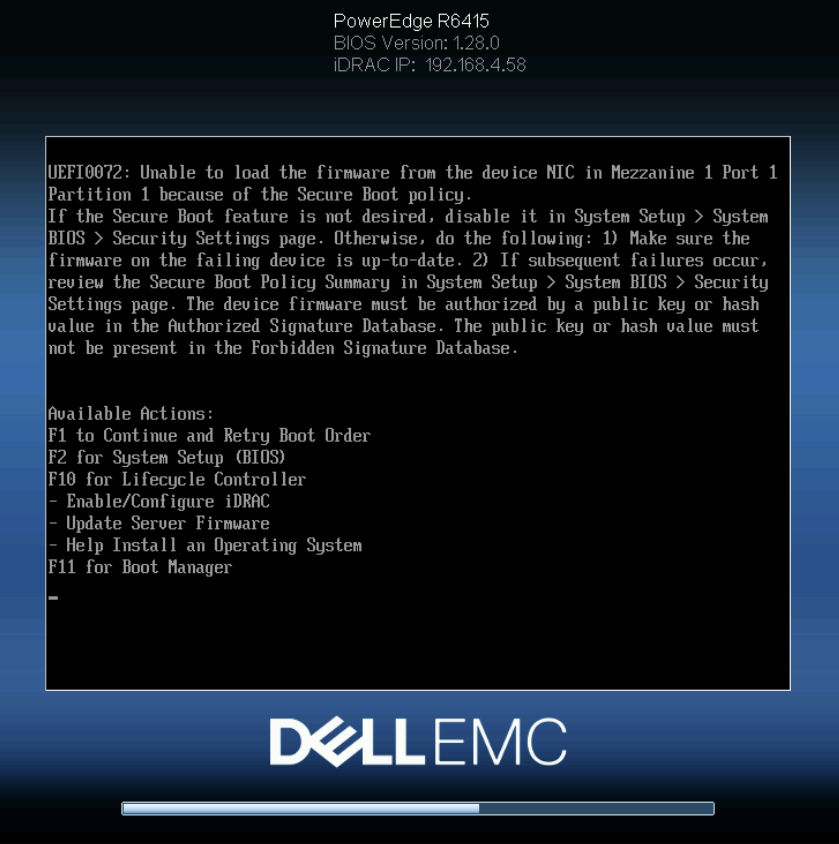
Afaict, disabling PXE boot is not sufficient as the system still tries to load the non-trusted NIC UEFI firmware. Instead, you can disable the boot driver on the relevant PCI slot like this (Slot 1 in my case, ymmv)
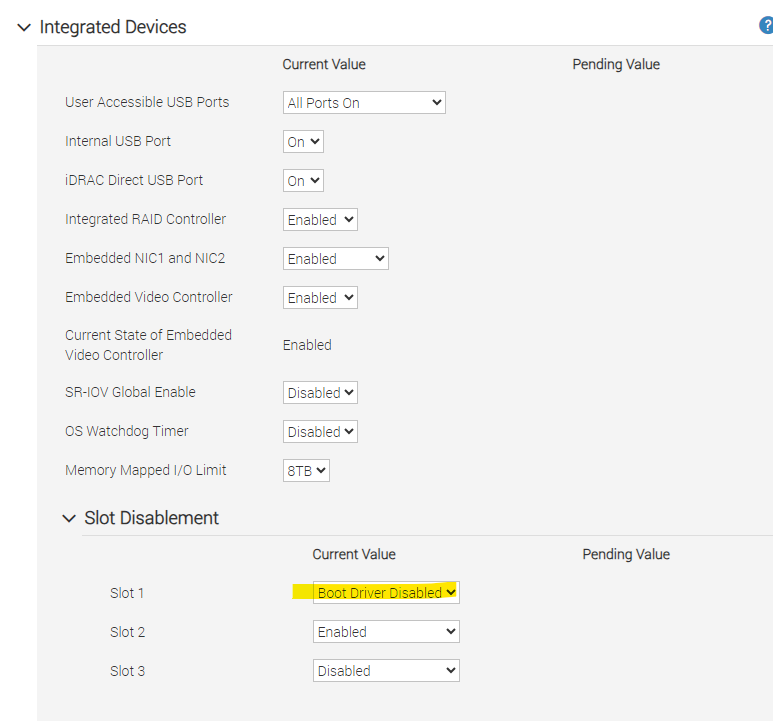
That fixed it for me. Of course won't help if you actually try to use the NIC for network boot...
(edited)
5
0
Posted August 31st, 2026 08:02
Hi @ClaussenDB,
You may try this step and check -
Check the BIOS Secure Boot configuration.
On the R660:
F2 → System BIOS → System Security → Secure Boot
Check:
- Secure Boot: Enabled
- Secure Boot Policy: Standard
- Secure Boot Mode
- Secure Boot Policy Summary / certificates
If you're using Custom, change it to Standard.

Refer Table 3 - Dell PowerEdge R660 Installation and Service Manual
Regards,
DELL-Bridjet V
Social Media and Communities Professional
Dell Technologies | Enterprise Support Services
#IWork4Dell
Was your query answered? Please click Thumbs Up to Mark it as Accepted Answer!
Regards,
DELL-Bridjet V
Social Media and Communities Professional
Dell Technologies | Enterprise Support Services
#IWork4Dell
Was your query answered? Please click Thumbs Up on the post that helped to Mark it as Accepted Answer!
7
0
Posted September 1st, 2026 13:37
@DELL-Bridjet V It was set for VMware Boot. I changed it to Standard after seeing that on one of my searches. That did not make any difference. I have changed it back to VMware Boot.
I found this on Friday, but I am a bit nervous to try it:
On a Dell PowerEdge R660, you can restore Secure Boot certificates either from BIOS/iDRAC menus or with RACADM.
From BIOS Setup
Reboot the server.
Press F2 at the Dell logo.
Go to System BIOS.
Open System Security.
Go to Secure Boot.
Look for Secure Boot Policy / Secure Boot Policy Summary / Restore Secure Boot Policy.
Choose Restore Factory Defaults or Restore Default Secure Boot Certificates.
Save changes and reboot.Dell’s wording varies by BIOS/iDRAC version, but the goal is to reset the Secure Boot key database back to Dell factory defaults.
Any thoughts on that option?
7
0
Posted September 2nd, 2026 07:02
Hi @ClaussenDB,
Before applying the option, could you share the NIC card model installed and the version of the NIC firmware currently installed as well as the BIOS and iDRAC firmware version?
Regards,
DELL-Bridjet V
Social Media and Communities Professional
Dell Technologies | Enterprise Support Services
#IWork4Dell
Was your query answered? Please click Thumbs Up to Mark it as Accepted Answer!
Regards,
DELL-Bridjet V
Social Media and Communities Professional
Dell Technologies | Enterprise Support Services
#IWork4Dell
Was your query answered? Please click Thumbs Up on the post that helped to Mark it as Accepted Answer!
0
0
Posted September 2nd, 2026 09:04
Hello @DELL-Bridjet V
I´ve got exactly the same issue on all of our PowerEdge R660xs servers with VMware ESXi installed.
ESXi Version 9.1.0.0200.25557999 Vendor Addon Dell Addon for PowerEdge Servers 9100-A02 The issues occures immediatelly after these updates applied

After the update FW and reboot I´ve got on all servers this error message:

F1 solve the issue and VMware started till the next reboot.
Regards,
Petr
0
0
Posted September 2nd, 2026 14:06
PowerEdge R660 Image applied during the update that seems to have caused all of this: ESXi version 8.0 U3k - 25595708 Dell addon for PowerEdge Servers 803-A10 Component FW Version BIOS 2.11.2 iDRAC 7.30.30.54 Embedded NIC 1Broadcom NetXtreme Gigabit Ethernet (BCM5720) 23.81.5 Port1 / Partition1 C4:CB:E1:F7:77:60 (vmnic0) Port2 / Partition1 C4:CB:E1:F7:77:61 (vmnic1) Integrated NIC 1: NVIDIA ConnectX-6 Lx 2x 25G SFP28 OCP3.0 SFF 26.49.10.14 Port1 / Partition1 7C:8C:09:E7:1D:E2 (vmnic2) Port2 / Partition1 7C:8C:09:E7:1D:E3 (vmnic3) NIC Slot 1: Broadcom BCM57454 4x10G BT PCIE 38.11.38.06 Port1 / Partition1 8c:84:74:56:32:b0 (vmnic4) Port2 / Partition1 8c:84:74:56:32:b1 (vmnic5) Port3 / Partition1 8c:84:74:56:32:b2 (vmnic6) Port4 / Partition1 8c:84:74:56:32:b3 (vmnic7) NVIDIA ConnectX-6 Lx 2x 25G SFP28 26.49.10.14 Port1 / Partition1 50:00:E6:73:54:4C (vmnic8) Port2 / Partition1 50:00:E6:73:54:4D (vmnic9) 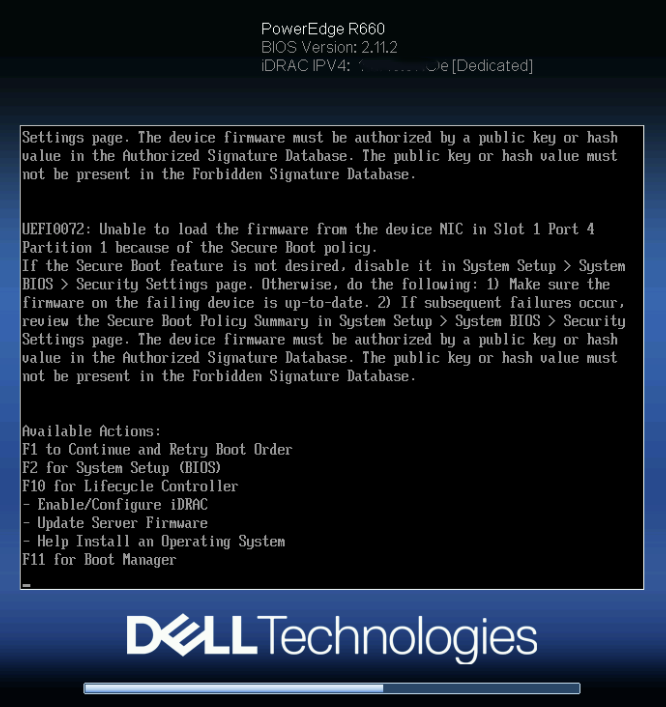
When this all started, it was the NVIDIA NIC(s) that had this error. Somewhere along the way, the Broadcom BCM57454 4x10G BT PCIE card now has the error and the NVIDIA card does not.
8
1
Posted September 2nd, 2026 19:30
@ahovda I disabled the Boot Driver on the slot in which the problematic NIC resides, rebooted - PROBLEM GONE. You just brought an end to weeks of troubleshooting - many thanks!
Now, this is a band-aid until Dell corrects the firmware signature/key/cert issue, but I can rest easy knowing my hosts will complete a boot without me having to press F1 in an iDRAC virtual console. All of that said, we do not use PXE boot, so this could in fact be the end all be all answer.
Also, you are right that neither removing PXE boot from the UEFI boot list OR just disabling PXE boot altogether correct the matter.
Thank again @ahovda
5
0
Posted September 3rd, 2026 04:14
Thank you both for sharing the workaround.
Hi @ClaussenDB,
I'm happy to hear the workaround did the trick! As an alternative approach, you could also try downgrading the NIC firmware to see if that eliminates the error.
On my end, I'll work on getting this reviewed by our L3 team, and it may take a bit of time. I'd recommend monitoring our support page for a potential fix.
Regards,
DELL-Bridjet V
Social Media and Communities Professional
Dell Technologies | Enterprise Support Services
#IWork4Dell
Was your query answered? Please click Thumbs Up to Mark it as Accepted Answer!
Regards,
DELL-Bridjet V
Social Media and Communities Professional
Dell Technologies | Enterprise Support Services
#IWork4Dell
Was your query answered? Please click Thumbs Up on the post that helped to Mark it as Accepted Answer!
7
0
Posted September 3rd, 2026 09:35
Hi @ClaussenDB
what do you mean by "I disabled the Boot Driver on the slot in which the problematic NIC resides"
Thanks for more details.
Regards,
Petr

Dell-Martin S
Moderator
•
3887 Posts
•
25822 Points
3
0
Posted November 3rd, 2026 07:32
Hi,
Try
1. Enter BIOS Setup: Reboot the server and press F2 to enter System Setup.
2. Navigate to Security: Go to System BIOS Settings > System Security.
3. Change the Policy: Locate Secure Boot Policy and change it from your current custom/non-standard option (like VMware Boot) to Standard.
4. Save and Reboot: Save your changes and let the server complete a full reboot. During this boot cycle, the BIOS will successfully import the missing Microsoft Option ROM UEFI CA 2023 certificate into the database.
5. Revert the Policy: Once the system posts cleanly, reboot back into the BIOS (F2), return to System Security, change the Secure Boot Policy back to your original configuration (e.g., VMware Boot), save, and reboot.
The key database will now persistently contain the 2023 certificate, and ESXi will boot cleanly without halting for manual intervention
with kind regards Martin/ Liebe Grüße Martin
Did I answer your query? Please click on ‘Mark as Accepted Answer’. ‘Thumbs up’ the posts you like!
DELL-Martin S
Social Media and Communities Professional
Dell Technologies | Enterprise Support Services
#IWork4Dell